
Moes TS004F_1
| Model | TS004F_1 |
| Vendor | Moes |
| Description | Wireless switch with 4 buttons |
| Exposes | operation_mode, battery, voltage, identify, action |
| Picture | 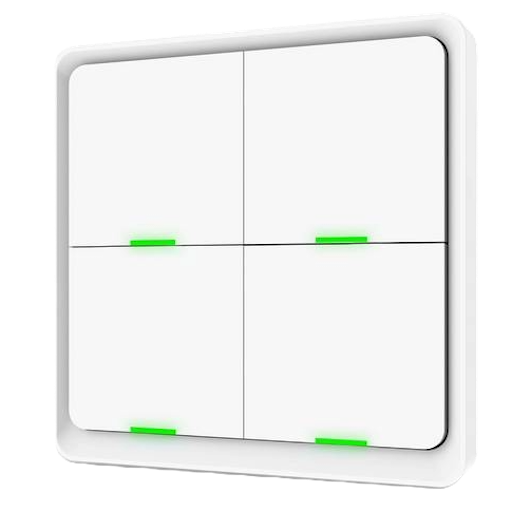 |
Notes
Information
- Tested with
_TZ3000_xabckq1v - Based on Silabs chipset
Battery
Uses 1 × CR2430 (3V). Other form-factors may also fit: CR2032.
Button positions
| 1 | 2 |
|---|---|
| 3 | 4 |
Pairing
The remote can be used in one of the following modes:
paired to a Zigbee network (with binding support: control one group)
without network, bound to one group of devices, via Touchlink
Zigbee network / Factory reset
Hold button 3 for 10s to factory reset and join a Zigbee network.
All LEDs flash green until the remote connects to the network.
A good battery may be needed to complete pairing.
Touchlink - no network
This remote uses Touchlink to set-up Zigbee binding and allow using it without a coordinator. Follow these steps:
- If the remote was previously connected to a network, or you want to clear bindings, factory reset it. All LEDs flash green
- Remove and re-insert the battery to exit "network join mode". LEDs stop flashing
- Power off nearby devices, that you don't want to control with it
- Hold buttons 1+3 for 6s to activate Touchlink mode. LED 3 flashes green
- Bring the remote close to the target device to start binding.
This will remove the target device from its network and add it to the remote's hidden Zigbee network - When successful, the target device identifies, and the remote's LED stops blinking.
The remote should now directly control the target, as described in Action mapping - command mode
Doing this inside the network has no effect, even if LED flashes.
In that case, binding must be set up through the coordinator:
Binding
This remote can directly control one group.
Directly controlling individual devices is not supported.
Binding/unbinding appears successful, but it's not effective.
Instead, follow these steps:
- Put the remote in command operation mode
- Add it to the group you want to control
Operation modes
This device has two modes:
- command mode (7 actions sent to coordinator + controlling the selected group)
- event mode (12 actions sent to coordinator)
Event mode adds a small delay, needed to differentiate between single/double clicks.
However, it bugs with multiple quick presses, making the remote feel unresponsive.
Actions are queued and emitted very slowly, 1-2 at a time.
Messages are non-standard Zigbee commands.
Command mode is much more responsive in comparison.
Actions are sent immediately.
Messages are standard Zigbee commands.
To switch between modes:
- hold buttons 2+4 for 6s until LED 3 flashes once
- or set operation_mode in Zigbee2MQTT
Action mapping
| Press | Button | Mode | Z2M Action | Bind action |
|---|---|---|---|---|
| Single | n | event | n_single | - |
| Double | n | event | n_double | - |
| Long | n | event | n_hold | - |
| Single | 1 | command | on | On |
| Single | 2 | command | brightness_step_up | Step (Up, 51 units, 1s transition) |
| Long | 2 | command | brightness_move_up + brightness_stop | Move (Up, 51 units/s) + Stop |
| Single | 3 | command | off | Off |
| Single | 4 | command | brightness_step_down | Step (Down, 51 units, 1s transition) |
| Long | 4 | command | brightness_move_down + brightness_stop | Move (Down, 51 units/s) + Stop |
Long press duration is 3s (until the LED turns off)
The corresponding LED blinks as a click confirmation
Options
How to use device type specific configuration
time_start: Reply to Tuya-specific time synchronization requests: "1970" - Reply with seconds since 1970/01/01 (recommended, should stop the device from asking), "2000" - Reply with seconds since 2000/01/01 (use if the weekday is wrong with 1970), "off" - Don't reply (use if replying causes too much traffic). Default for this device: "off". The value must be one of1970,2000,offidentify_timeout: Sets the duration of the identification procedure in seconds (i.e., how long the device would flash).The value ranges from 1 to 30 seconds (default: 3). The value must be a number with a minimum value of1and with a maximum value of30simulated_brightness: Simulate a brightness value. If this device provides a brightness_move_up or brightness_move_down action it is possible to specify the update interval and delta. The action_brightness_delta indicates the delta for each interval. Example:
simulated_brightness:
  delta: 20 # delta per interval, default = 20
  interval: 200 # interval in milliseconds, default = 200
Exposes
Operation mode (enum)
Operation mode: "command" - for group control, "event" - for clicks. Value can be found in the published state on the operation_mode property. To read (/get) the value publish a message to topic zigbee2mqtt/FRIENDLY_NAME/get with payload {"operation_mode": ""}. To write (/set) a value publish a message to topic zigbee2mqtt/FRIENDLY_NAME/set with payload {"operation_mode": NEW_VALUE}. The possible values are: command, event.
Battery (numeric)
Remaining battery in %. Value can be found in the published state on the battery property. To read (/get) the value publish a message to topic zigbee2mqtt/FRIENDLY_NAME/get with payload {"battery": ""}. It's not possible to write (/set) this value. The minimal value is 0 and the maximum value is 100. The unit of this value is %.
Voltage (numeric)
Reported battery voltage in millivolts. Value can be found in the published state on the voltage property. To read (/get) the value publish a message to topic zigbee2mqtt/FRIENDLY_NAME/get with payload {"voltage": ""}. It's not possible to write (/set) this value. The unit of this value is mV.
Identify (enum)
Initiate device identification. This device is asleep by default.You may need to wake it up first before sending the identify command.. Value will not be published in the state. It's not possible to read (/get) this value. To write (/set) a value publish a message to topic zigbee2mqtt/FRIENDLY_NAME/set with payload {"identify": NEW_VALUE}. The possible values are: identify.
Action (enum)
Triggered action (e.g. a button click). Value can be found in the published state on the action property. It's not possible to read (/get) or write (/set) this value. The possible values are: on, off, brightness_step_up, brightness_step_down, brightness_move_up, brightness_move_down, color_temperature_step_up, color_temperature_step_down, brightness_stop, 1_single, 1_double, 1_hold, 2_single, 2_double, 2_hold, 3_single, 3_double, 3_hold, 4_single, 4_double, 4_hold.