
Shelly SBHT-103C
| Model | SBHT-103C |
| Vendor | Shelly |
| Description | BLU H&T display Zigbee |
| Exposes | battery, temperature, humidity, light_level, dark_threshold, bright_threshold, identify |
| Picture | 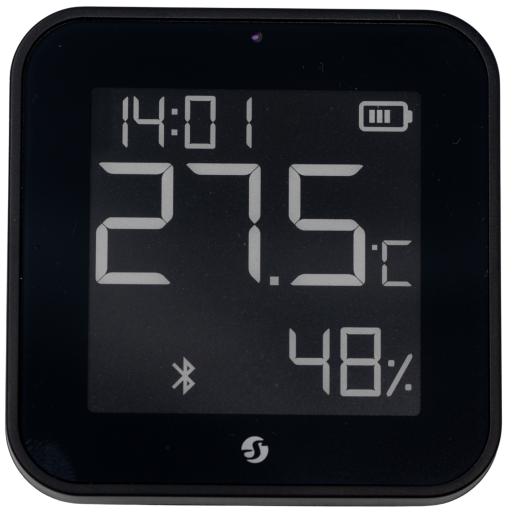 |
Firmware
It is recommended to connect Shelly devices by WiFi / Bluetooth, and update their firmware, until they gain support for OTA updates over Zigbee.
The latest firmware fixes known issues like negative power readings on some models.
Note they roll-out updates in phases. Check "beta" channels if you are specifically looking for a fix.
Notes
Shelly BLU H&T Display ZB Black - SBHT-103C https://www.shelly.com/blogs/documentation/shelly-blu-h-t-display-zb
Device setup
Device setup
Clock sync over Zigbee now works
Update firmware (tested with 1.2.20):
- Use
Shelly BLE Debugmobile phone app to scan for devices - Pair to device
- If you cant pair, hit button once to get into setup mode and then 4 times to get pairing active (screen show bLE)
- App should offer OTA right away, otherwise click
OTA, follow instructions (you want stock firmware if asked) - Wait for OTA to finish
Pair to ZB
- Activate ZB by entering Setup
- Hold button for 10s
- Globe icon will show to indicate ZB is active
- Enter setup mode
- Press button 5 times rapidly to enter ZB pairing (will show zig on screen)
- Set z2m to permit join
Enable ZB Clock sync
- Turn off BLE: hit button once to get Set, then press for 5s, check that BT icon disappears - this is critical, if BT is on, it tries BT clock sync
- Then enter set again and press button rapidly twice to force clock sync
Single Button
Press 1 time: Enter setup mode for 3 minutes.

    Press 1 time: Exit setup mode.

    Press 2 times rapidly: Force clock synchronization via a Shelly device set as a Bluetooth gateway.

    Press 4 times rapidly: Enter Bluetooth pairing mode.

    Press 5 times rapidly: Enter Zigbee pairing mode.

    Press and hold for 5 seconds: Toggle Bluetooth on/off.

    Press and hold for 10 seconds: Toggle Zigbee on/off.

    Press and hold for 30 seconds: Resets the device to factory settings.

Press 2 times rapidly: Toggle the clock display segment between showing the clock or the date.

Press 3 times rapidly: Switch temperature unit between Celsius and Fahrenheit. When Celsius is selected, the date format is DD.MM; when Fahrenheit is selected, the date format is MM.DD.

Press 4 times rapidly: Invert the display colors.

Press 5 times rapidly: Toggle the clock format between 24-hour and 12-hour.
Options
How to use device type specific configuration
temperature_calibration: Calibrates the temperature value (absolute offset), takes into effect on next report of device. The value must be a number.temperature_precision: Number of digits after decimal point for temperature, takes into effect on next report of device. This option can only decrease the precision, not increase it. The value must be a number with a minimum value of0and with a maximum value of3humidity_calibration: Calibrates the humidity value (absolute offset), takes into effect on next report of device. The value must be a number.humidity_precision: Number of digits after decimal point for humidity, takes into effect on next report of device. This option can only decrease the precision, not increase it. The value must be a number with a minimum value of0and with a maximum value of3identify_timeout: Sets the duration of the identification procedure in seconds (i.e., how long the device would flash).The value ranges from 1 to 30 seconds (default: 3). The value must be a number with a minimum value of1and with a maximum value of30
Exposes
Battery (numeric)
Remaining battery in %. Value can be found in the published state on the battery property. To read (/get) the value publish a message to topic zigbee2mqtt/FRIENDLY_NAME/get with payload {"battery": ""}. It's not possible to write (/set) this value. The minimal value is 0 and the maximum value is 100. The unit of this value is %.
Temperature (numeric)
Measured temperature value. Value can be found in the published state on the temperature property. To read (/get) the value publish a message to topic zigbee2mqtt/FRIENDLY_NAME/get with payload {"temperature": ""}. It's not possible to write (/set) this value. The unit of this value is °C.
Humidity (numeric)
Measured relative humidity. Value can be found in the published state on the humidity property. To read (/get) the value publish a message to topic zigbee2mqtt/FRIENDLY_NAME/get with payload {"humidity": ""}. It's not possible to write (/set) this value. The unit of this value is %.
Light level (enum)
Coarse light level. Value can be found in the published state on the light_level property. To read (/get) the value publish a message to topic zigbee2mqtt/FRIENDLY_NAME/get with payload {"light_level": ""}. It's not possible to write (/set) this value. The possible values are: dark, twilight, bright.
Dark threshold (numeric)
Lux threshold below which light level is dark. Value can be found in the published state on the dark_threshold property. To read (/get) the value publish a message to topic zigbee2mqtt/FRIENDLY_NAME/get with payload {"dark_threshold": ""}. To write (/set) a value publish a message to topic zigbee2mqtt/FRIENDLY_NAME/set with payload {"dark_threshold": NEW_VALUE}. The minimal value is 0 and the maximum value is 65535. The unit of this value is lx.
Bright threshold (numeric)
Lux threshold above which light level is bright. Value can be found in the published state on the bright_threshold property. To read (/get) the value publish a message to topic zigbee2mqtt/FRIENDLY_NAME/get with payload {"bright_threshold": ""}. To write (/set) a value publish a message to topic zigbee2mqtt/FRIENDLY_NAME/set with payload {"bright_threshold": NEW_VALUE}. The minimal value is 0 and the maximum value is 65535. The unit of this value is lx.
Identify (enum)
Initiate device identification. This device is asleep by default.You may need to wake it up first before sending the identify command.. Value will not be published in the state. It's not possible to read (/get) this value. To write (/set) a value publish a message to topic zigbee2mqtt/FRIENDLY_NAME/set with payload {"identify": NEW_VALUE}. The possible values are: identify.