
Bubendorff MONO iD4
| Model | MONO iD4 |
| Vendor | Bubendorff |
| Description | Rroller shutter |
| Exposes | cover (state, position, tilt) |
| Picture | 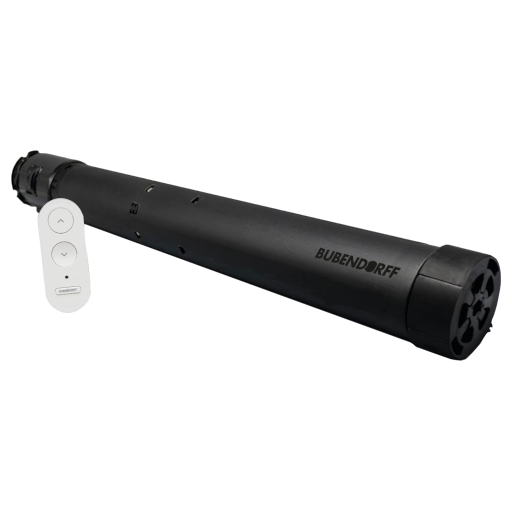 |
Notes
Leaving procedure
Step 1
Open the shutter completely
Step 2
- Press simultaneously
↑,↓andBUBENDORFFbuttons on the remote during at least 4 seconds and wait for the led blinking fast, the shutter should move a bit as an acknowledgment - Then press
↓button on the remote during at least 2 seconds, the shutter should move a bit as an acknowledgment
Pairing procedure
⚠️ In case you are re-pairing the device, you should have to use the leaving procedure before.
Step 1
Open the shutter completely
Step 2
These roller shutters could be paired only for 40 minutes until the programming window has been activated, here are steps to start a new programming window :
- Cut shutters power during at lest 7 seconds and then restore it
- Press
↓remote button during at least 4 seconds, the shutter should down for 3 seconds to aknowledge action
Step 3
Enable permit join on the coordinator using Z2M interface.
Step 4
Enter shutter in programming mode with the following procedure :
- Press simultaneously
↑,↓andBUBENDORFFbuttons on the remote during at least 4 seconds and wait for the led blinking fast, the shutter should move a bit as an acknowledgment - Then press
↑button on the remote during at least 2 seconds, the shutter should move during 3 seconds as an acknowledgment
Step 5
The shutter should appear in Z2M devices, so now you can exit the programming mode using the following procedure :
- Press
↓remote button during less than 0.5 seconds, the shutter should move to aknowledge action
Options
How to use device type specific configuration
invert_cover: Inverts the reported cover position and the state derived from it, false: open=100,close=0, true: open=0,close=100 (default false). The value must betrueorfalsecover_position_tilt_disable_report: Do not publish set cover target position as a normal 'position' value (default false). The value must betrueorfalse
Exposes
Cover
The current state of this cover is in the published state under the state property (value is OPEN or CLOSE). To control this cover publish a message to topic zigbee2mqtt/FRIENDLY_NAME/set with payload {"state": "OPEN"}, {"state": "CLOSE"}, {"state": "STOP"}. It's not possible to read (/get) this value. To change the position publish a message to topic zigbee2mqtt/FRIENDLY_NAME/set with payload {"position": VALUE} where VALUE is a number between 0 and 100. To change the tilt publish a message to topic zigbee2mqtt/FRIENDLY_NAME/set with payload {"tilt": VALUE} where VALUE is a number between 0 and 100.