
Iolloi ID-UK21FW09
| Model | ID-UK21FW09 |
| Vendor | Iolloi |
| Description | Zigbee LED smart dimmer switch |
| Exposes | light (state, brightness), power_on_behavior |
| Picture | 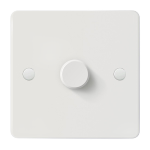 |
| White-label | Iolloi ID-EU20FW09 |
Notes
Re-pairing
Re-pairing requires the device is removed from any existing network first, this requires a factory reset if the dimmer cannot be gracefully removed from the previous network. Unfortunately the user manual does not cover this procedure, but it is quite simple: To perform a factory reset. Turn on the light, press the knob for 5 times and long press the 5th time for 3 seconds. Once reset successfully, the lamp will flicker for 5 times. To start paring, turn on the light, press the knob for 2 times and long press the 2nd time for 3 seconds. Once pairing starts, the lamp will flicker for 2 times. When pairing is complete, the lamp will flash once more.
Re-pairing Using the Reset Button
Follow these steps to manage pairing using the reset button:
Graceful Un-pairing: Press the reset button 3 times quickly to gracefully remove the device from its current network. The indicator light will flash purple, then turn solid purple for 10 seconds, confirming the un-pairing.
Note: If graceful un-pairing is not possible, perform a factory reset.
Manual Factory Reset: Press and hold the reset button for more than 5 seconds. The indicator light will turn solid red for 10 seconds, confirming the device has been reset to factory settings.
Start Pairing: Press the reset button 2 times quickly to initiate pairing mode. The indicator light will flash blue, indicating pairing mode is active. Pairing mode remains active for 15 minutes.
Options
How to use device type specific configuration
transition: Controls the transition time (in seconds) of on/off, brightness, color temperature (if applicable) and color (if applicable) changes. Defaults to0(no transition). The value must be a number with a minimum value of0state_action: State actions will also be published as 'action' when true (default false). The value must betrueorfalse
Exposes
Light
This light supports the following features: state, brightness.
state: To control the state publish a message to topiczigbee2mqtt/FRIENDLY_NAME/setwith payload{"state": "ON"},{"state": "OFF"}or{"state": "TOGGLE"}. To read the state send a message tozigbee2mqtt/FRIENDLY_NAME/getwith payload{"state": ""}.brightness: To control the brightness publish a message to topiczigbee2mqtt/FRIENDLY_NAME/setwith payload{"brightness": VALUE}whereVALUEis a number between0and254. To read the brightness send a message tozigbee2mqtt/FRIENDLY_NAME/getwith payload{"brightness": ""}.
On with timed off
When setting the state to ON, it might be possible to specify an automatic shutoff after a certain amount of time. To do this add an additional property on_time to the payload which is the time in seconds the state should remain on. Additionally an off_wait_time property can be added to the payload to specify the cooldown time in seconds when the light will not answer to other on with timed off commands. Support depends on the light firmware. Some devices might require both on_time and off_wait_time to work Examples : {"state" : "ON", "on_time": 300}, {"state" : "ON", "on_time": 300, "off_wait_time": 120}.
Transition
For all of the above mentioned features it is possible to do a transition of the value over time. To do this add an additional property transition to the payload which is the transition time in seconds. Examples: {"brightness":156,"transition":3}, {"color_temp":241,"transition":1}.
Moving/stepping
Instead of setting a value (e.g. brightness) directly it is also possible to:
- move: this will automatically move the value over time, to stop send value
stopor0. - step: this will increment/decrement the current value by the given one.
The direction of move and step can be either up or down, provide a negative value to move/step down, a positive value to move/step up. To do this send a payload like below to zigbee2mqtt/FRIENDLY_NAME/set
NOTE: brightness move/step will stop at the minimum brightness and won't turn on the light when it's off. In this case use brightness_move_onoff/brightness_step_onoff
{
  "brightness_move": -40, // Starts moving brightness down at 40 units per second
  "brightness_move": 0, // Stop moving brightness
  "brightness_step": 40 // Increases brightness by 40
}
Power-on behavior (enum)
Controls the behavior when the device is powered on after power loss. Value can be found in the published state on the power_on_behavior property. To read (/get) the value publish a message to topic zigbee2mqtt/FRIENDLY_NAME/get with payload {"power_on_behavior": ""}. To write (/set) a value publish a message to topic zigbee2mqtt/FRIENDLY_NAME/set with payload {"power_on_behavior": NEW_VALUE}. The possible values are: off, on, toggle, previous.