
EcoDim ED-10012
| Model | ED-10012 |
| Vendor | EcoDim |
| Description | Zigbee 4 button wall switch - white |
| Exposes | battery, action |
| Picture | 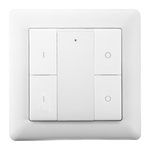 |
Pairing
Factory reset and disconnect from any other network
- Hold left upper and right upper button for approx. 5 seconds
- The LED turn on green
- Then press on any of those two buttons 5 times quickly.
Pairing with new network
- Bring Zigbee2MQTT into pairing mode.
- Hold left upper and right upper button for approx. 5 seconds
- When green light turns on press any of those 2 buttons one.
- The lght should start flashing once per second.
- successful coupling is indicated by 5 quick flaashes.
Options
How to use device type specific configuration
simulated_brightness: Simulate a brightness value. If this device provides a brightness_move_up or brightness_move_down action it is possible to specify the update interval and delta. The action_brightness_delta indicates the delta for each interval. Example:
simulated_brightness:
  delta: 20 # delta per interval, default = 20
  interval: 200 # interval in milliseconds, default = 200
Exposes
Battery (numeric)
Remaining battery in %, can take up to 24 hours before reported. Value can be found in the published state on the battery property. It's not possible to read (/get) or write (/set) this value. The minimal value is 0 and the maximum value is 100. The unit of this value is %.
Action (enum)
Triggered action (e.g. a button click). Value can be found in the published state on the action property. It's not possible to read (/get) or write (/set) this value. The possible values are: on_1, off_1, brightness_move_up_1, brightness_move_down_1, brightness_stop_1, on_2, off_2, brightness_move_up_2, brightness_move_down_2, brightness_stop_2.