
Namron 4512770
| Model | 4512770 |
| Vendor | Namron |
| Description | Zigbee multisensor (white) |
| Exposes | occupancy, battery, voltage, temperature, humidity, illuminance |
| Picture | 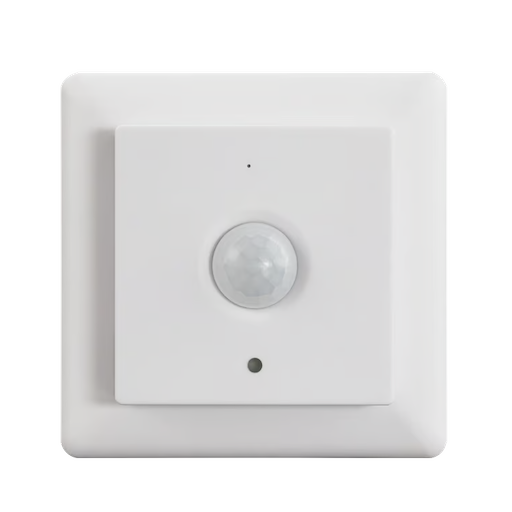 |
Notes
LED Indicator Status
| Operation Description | LED Status |
|---|---|
| PIR motion sensor triggered | Flashing once rapidly |
| Powered on | Staying solid on for 1 second |
| OTA firmware update | Flashing twice rapidly with 1 second interval |
| Identify | Flashing slowly (0.5S) |
| Joining a network (Triple press the button) | Flashing rapidly continuously |
| Joined successfully | Staying solid on for 3 seconds |
| Leaving a network or reset (Long press the button) | Flashing slowly (0.5S) |
| Already in a network (Short press the button) | Staying solid on for 3 seconds |
| Not in any network (Short press the button) | Flashing three times slowly (0.5S) |
Operations
1. Zigbee Network Pairing
Step 1: Remove the device from previous zigbee network if it has already been added to, otherwise pairing will fail. Please refer to the part " Factory Reset Manually". Step 2: From your ZigBee gateway or hub interface, choose to add device and enter Pairing mode as instructed by the gateway. Step 3: Method 1: short press the “Prog.” Button 3 times continuously within 1.5 seconds, the LED indicator will flash rapidly and enter into network pairing mode (beacon request) which lasts for 60 seconds. Once timeout, repeat this step. Method 2: make sure the device has not paired to any Zigbee network, reset power of the device by removing the batteries and installing them again, then the device will enter into network pairing mode automatically which lasts for 10 seconds. Once timeout, repeat this step. Step 4: The LED indicator will stay solid on for 3 seconds if the device is paired to the network successfully, then the device will appear in your gateway's menu and can be controlled through gateway or hub interface.
2. Removing from a Zigbee Network
Press and hold the Prog. button until LED indicator blinks 4 times slowly, then release the button, LED indicator will then stay solid on for 3 seconds to indicate that the device is removed from the network successfully. Note: the device will be removed from the network and all bindings will be cleared.
3. Factory Reset Manually
Press and hold the Prog. button for over 10 seconds, during the process, the LED indicator will blink slowly at the frequency of 0.5Hz, the LED indicator will stay solid on for 3 seconds which means factory reset successfully, then LED will turn off. Note: factory reset will remove the device from the network, clear all bindings, restore all parameters to factory default setting, clear all report config settings. Since the device is a sleep device, it needs to be awakened. If the device has already been added to a network, when there is a button trigger, the device will be awakened, then if there is no data from the gateway within 3 seconds, the device will go to sleep again.
4. Check Whether the Device is Already in a Zigbee Network
Method 1: short press Prog. button, if LED indicator stays solid on for 3 seconds, this means the device has already been added to a network. If LED indicator blinks 3 times slowly, this means the device has not been added to any network. Method 2: reset power of the device by removing the batteries and installing them again, if the LED indicator blinks rapidly, it means the device has not been added to any network. If LED indicator stays solid on for 3 seconds, this means the device has not been added to any network.
5. Wireless Data Interaction
Since the device is a sleep device, it needs to be awakened. If the device has already been added to a network, when there is a button trigger, the device will be awakened, then if there is no data from the gateway within 3 seconds, the device will go to sleep again.
Manual
https://www.elektroimportoren.no/docs/lib/4512770-Brukerveiledning-5.pdf
Options
How to use device type specific configuration
temperature_calibration: Calibrates the temperature value (absolute offset), takes into effect on next report of device. The value must be a number.temperature_precision: Number of digits after decimal point for temperature, takes into effect on next report of device. This option can only decrease the precision, not increase it. The value must be a number with a minimum value of0and with a maximum value of3humidity_calibration: Calibrates the humidity value (absolute offset), takes into effect on next report of device. The value must be a number.humidity_precision: Number of digits after decimal point for humidity, takes into effect on next report of device. This option can only decrease the precision, not increase it. The value must be a number with a minimum value of0and with a maximum value of3illuminance_calibration: Calibrates the illuminance value (percentual offset), takes into effect on next report of device. The value must be a number.illuminance_raw: Expose the raw illuminance value. The value must betrueorfalse
Exposes
Occupancy (binary)
Indicates whether the device detected occupancy. Value can be found in the published state on the occupancy property. It's not possible to read (/get) or write (/set) this value. If value equals true occupancy is ON, if false OFF.
Battery (numeric)
Remaining battery in %, can take up to 24 hours before reported. Value can be found in the published state on the battery property. It's not possible to read (/get) or write (/set) this value. The minimal value is 0 and the maximum value is 100. The unit of this value is %.
Voltage (numeric)
Voltage of the battery in millivolts. Value can be found in the published state on the voltage property. It's not possible to read (/get) or write (/set) this value. The unit of this value is mV.
Temperature (numeric)
Measured temperature value. Value can be found in the published state on the temperature property. It's not possible to read (/get) or write (/set) this value. The unit of this value is °C.
Humidity (numeric)
Measured relative humidity. Value can be found in the published state on the humidity property. It's not possible to read (/get) or write (/set) this value. The unit of this value is %.
Illuminance (numeric)
Measured illuminance. Value can be found in the published state on the illuminance property. To read (/get) the value publish a message to topic zigbee2mqtt/FRIENDLY_NAME/get with payload {"illuminance": ""}. It's not possible to write (/set) this value. The unit of this value is lx.